Guide
How To Block Ads On Dailymotion
August 31, 2026
Guide
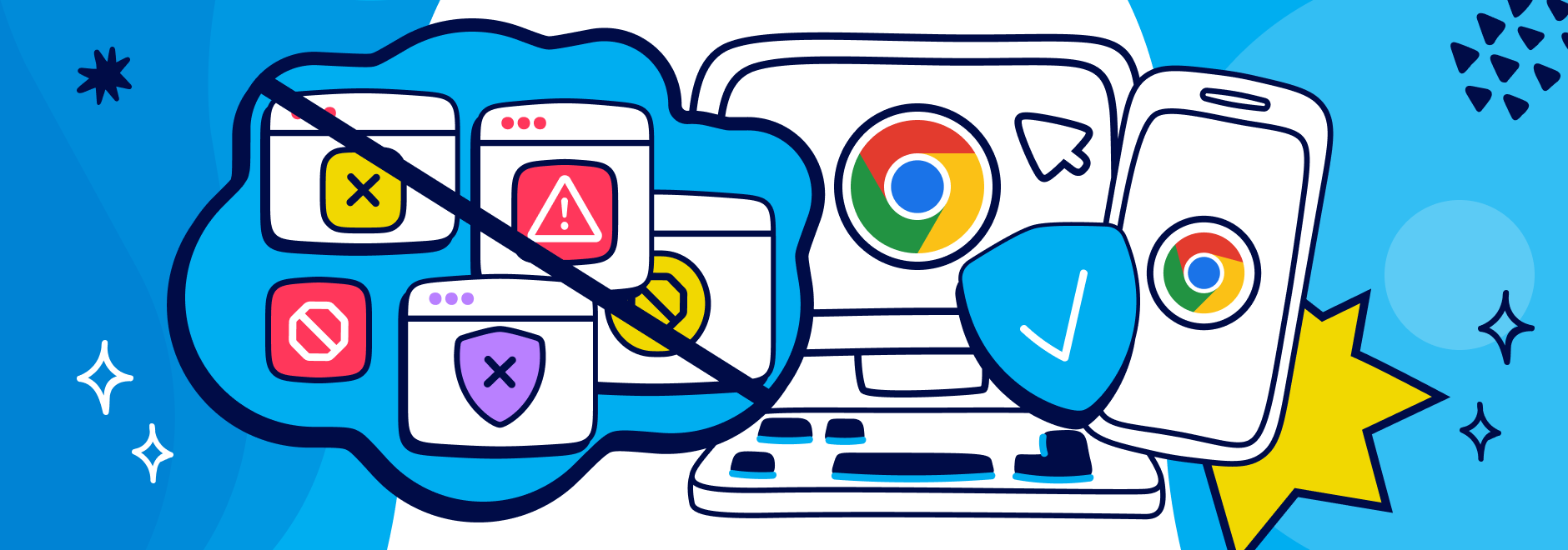
Pop-ups are also annoying, intrusive, and sometimes even malicious. They can interrupt your browsing experience, distract you from the content you want to see, and expose you to unwanted ads, scams, or malware. That’s why it’s important to know how to stop pop-ups on Chrome, whether you’re using a desktop or a mobile device.
We’ll show you how to stop pop ups on Chrome, as well as how to use Ghostery to stop pop-up windows and trackers more effectively. We’ll also show you how to allow or block pop-ups from specific websites, and how to block all ads on Chrome with Ghostery Tracker & Ad Blocker.
Pop-ups are not only annoying, but also potentially harmful. Here are some of the reasons why you should block pop-ups on Chrome:
Security: Pop-up ads can contain malicious code that can infect your device with malware, spyware, ransomware, or phishing schemes. Some pop-up ads can even disguise themselves as legitimate alerts or warnings from your system or browser, tricking you into clicking on them or downloading something harmful.
Privacy: Pop-ups can track your online activity, collect your personal information, or access your camera or microphone without your consent. Some pop-ups can even use your device’s resources to mine cryptocurrency or perform other tasks in the background.
User experience: Pop-ups can disrupt your browsing experience by covering the content you want to see, redirecting you to unwanted pages, or playing loud sounds or videos. Some pop-ups can even prevent you from closing them or leaving the page, forcing you to interact with them.
But not all pop-ups are bad. Some of them serve a legitimate purpose, such as informing you about the privacy policies of a website, asking for your consent to use cookies, or offering you a discount or a free trial. These pop-ups are intended to enhance your user experience, not to ruin it.
However, the way they are implemented is often not ideal. They may be too intrusive, frequent, hard to close, or irrelevant to your interests. That’s where Never-Consent in Ghostery’s Tracker & Ad Blocker comes in.
Never-Consent selects the optimal privacy settings automatically and stops websites from asking you to accept cookies via intrusive cookie consent pop-up windows. It also sends important messages to website owners telling them that you don’t want to be tracked.
Chrome has a built-in feature that allows you to block pop-ups from most websites. Here’s how to enable the pop up blocker:
1. On your Chrome desktop browser, click on the three-dot menu icon at the top right corner and select Settings.
2. Select Privacy and security, and then click on Site Settings.
3. Under Content, click on Pop-ups and redirects.
4. Under Default behavior, select Don’t allow sites to send pop-ups or use redirects.
1. On your Chrome mobile browser, tap on the three-dot menu icon at the bottom right corner and select Settings.
2. Tap on Content Settings.
3. Tap on Block Pop-ups to ensure that it is enabled.
4. Toggle the switch to On.
While using the native pop up blocker in Chrome can help you avoid most pop-ups, some websites may still be able to bypass this feature and show you unwanted ones. That’s why we recommend using Ghostery Ad Blocker to stop pop-ups and other trackers more effectively.
Ghostery Tracker & Ad Blocker is a privacy extension that allows you to see and control the trackers that follow you around the web. It blocks not only pop-ups, but also other types of trackers that can slow down your browser, compromise your privacy, or interfere with your user experience.
Here’s how to stop pop ups on Chrome with Ghostery and block pop up ads more effectively:
1. Go to the Ghostery website and click on Get Extension.
2. Next, you need to click on the download or install button and follow the prompts to add the extension to your browser.
3. Once the extension is installed, click Enable Ghostery.
4. Follow the on-screen prompt to pin Ghostery to your browser toolbar.
Enjoy a cleaner, faster, and safer browsing experience with Ghostery!
Chrome does not allow extensions for Android or iOS (iPhone/iPad).
If you want to get rid of ads, trackers and pop ups on your Android phone, Firefox is the way to go. It’s the only browser that supports extensions on Android, and Ghostery Ad Blocker is one of the few extensions that works on Firefox for Android. Read more about how to block ads on Android.
Ghostery is supported using Safari for iPhone, iPad, and Mac. You can see how to add extensions to Safari here.
Sometimes, you may want to allow or block pop-ups from specific websites that you trust or don’t trust. Here’s how to do it:
1. On your Chrome desktop browser, click on the three-dot menu icon at the top right corner and select Settings.
2. Select Privacy and security, and then click on Site Settings.
3. Under Content, click on Pop-ups and redirects.
4. Scroll to see Customized behaviors
5. To block pop-ups and redirects from specific websites, type their addresses and click Add under Not allowed to send pop-ups or use redirects. This will stop the pop-ups from those sites only, while others can still show you pop-ups.
6. If you want to allow pop-ups from a certain site, click Add to the list a site under Allowed to send pop-ups and use redirects. Make sure to block the rest under Default behavior.
Chrome also maintains an Allowed to send pop-ups and use redirects list. If you continue seeing pop-ups from a website, review this section carefully to verify the site has not been added accidentally. Removing a website from the allowed list helps Chrome consistently block pop up ads and redirects from that domain.
If you want to block not only pop-ups, but also other types of ads that can clutter your screen, slow down your browser, or compromise your privacy, you can use Ghostery Tracker & Ad Blocker.
Ghostery Ad Blocker is an extension that allows you to block pop up ads on Chrome with just a few clicks.
If pop-ups continue appearing after you've enabled Chrome's pop-up blocker, the cause may not be Chrome's settings alone. Some websites use browser notifications that look similar to pop-ups, while others rely on malware, aggressive advertising scripts, or cached browser data to continue displaying unwanted content.
In these situations, it's important to identify whether you're dealing with traditional pop-ups, browser notifications, or a potentially malicious website. Reviewing Chrome's permissions and clearing stored website data can often resolve persistent issues.
Pop-ups are browser windows or overlays that appear while you're visiting a website. Browser notifications are messages sent through Chrome's notification system after you've granted a website permission to send alerts.
If messages continue appearing even when Chrome is closed or while you're browsing unrelated websites, they're often notifications rather than pop-ups. You can manage these permissions by reviewing Chrome's notification settings and removing websites that you no longer trust.
To review which websites can send notifications:
Removing unwanted notification permissions stops many interruptions that are commonly mistaken for pop-ups. Note that these permissions are stored separately from cached files and cookies, so clearing browser data alone will not remove them — they must be managed from this list.
Sometimes websites store data in your browser that causes unwanted behavior to continue even after settings have been changed. Clearing cached files and cookies can remove advertising data and corrupted website information.
To clear browser data:
If unwanted pop-ups persist after clearing browser data, run a malware scan on your device and verify that no suspicious extensions have been installed in Chrome.
Pop-ups are one of the most annoying and harmful things that can ruin your browsing experience. That’s why you should know how to use a pop up blocker on Chrome, whether you’re using a desktop or a mobile device.
You can use the native pop-up blocker in Chrome, but for a more effective and comprehensive solution, you can use Ghostery Tracker & Ad Blocker to stop pop-ups and other trackers that can compromise your privacy, security, and user experience.
You can also use Ghostery Ad Blocker to block pop up ads on Chrome with just a few clicks.
With Ghostery, you can enjoy a cleaner, faster, and safer browsing experience on Chrome. Download Ghostery today and see the difference for yourself!
You can allow or block pop-ups from specific websites in Chrome by clicking or tapping on the lock icon next to the address bar and selecting Site Settings. You can also use Ghostery to manage your custom blocking preferences for each website or tracker category.
Chrome does not allow extensions on mobile devices. You can use Ghostery Ad Blocker on both desktop and mobile devices by installing the Ghostery extension or the Ghostery Private Browser.
Not really. Blocking pop-ups in Chrome can only improve your browsing experience by protecting your privacy, security, and user experience, especially when using Ghostery Ad Blocker. However, some websites may rely on pop-ups for legitimate purposes, such as authentication, payment, or feedback.
To stop popups on Chrome, you can enable the built-in pop-up blocker in the browser settings. However, for a more effective and comprehensive solution, you can use Ghostery to stop pop-ups and other ads.
Pop-up windows are small browser windows that automatically appear on surface of the webpage you're viewing. They’re often used to display ads, sign-up prompts, or special offers, but can also be intrusive and disrupt your browsing. Many pop-ups are powered by advertising scripts, which is why using an ad blocker helps stop them reliably and keeps your screen clutter-free.
Even after Chrome's popup blocker is enabled, interruptions may still appear for several reasons. Some websites use browser notifications rather than traditional popups, while others may have been granted permission through Chrome's site settings. Cached browser data, malicious extensions, or malware can also cause unwanted windows and alerts to continue appearing. Reviewing Chrome's notification permissions, removing suspicious extensions, clearing browser data, and running a malware scan are effective steps when pop-ups persist despite blocking being enabled.
Chrome allows you to control pop up behavior on a site-by-site basis through its Site Settings menu. Individual websites can be added to either the allowed or blocked list depending on whether you trust them. This gives you the flexibility to permit popups for services that require them while continuing to block unwanted interruptions elsewhere. Regularly reviewing the allowed sites list helps ensure that websites cannot display pop-ups or redirects unless you have intentionally granted permission.
Popup ads appear directly within your browser while visiting a website and are typically used for advertising, promotions, redirects, or other on-page interactions. Browser notifications are separate messages delivered through Chrome's notification system after a website has been granted permission to send alerts. Notifications can continue appearing even when the website is no longer open. Understanding this distinction is important because blocking popups alone will not stop notifications. Notification permissions must be reviewed and managed separately through Chrome's settings.
If there is anything you miss in Ghostery or have any questions, please drop a line to support@ghostery.com. We’re happy to talk to you anytime.