Guide
How To Block Ads On Dailymotion
August 31, 2026
Guide
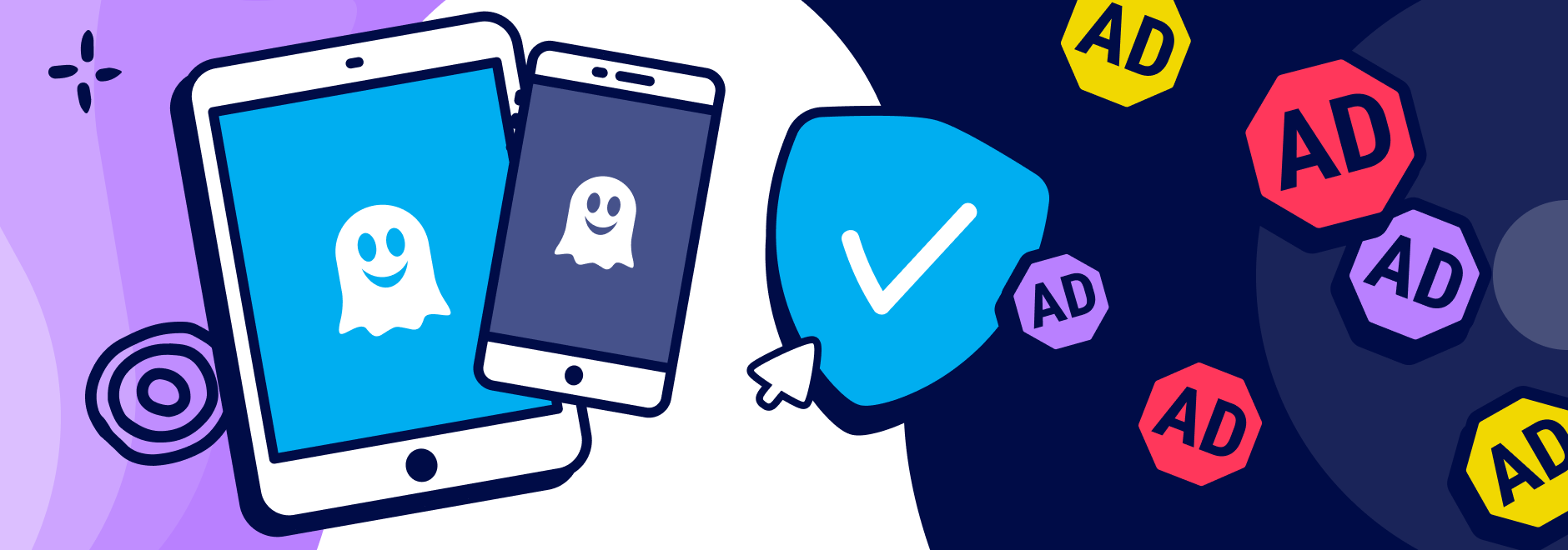
If you’re like most people, you probably use your iPhone and iPad to browse the web, watch videos, play games, and check social media. These activities expose you to a barrage of annoying and intrusive ads that ruin your online experience.
Not only do ads clutter your screen and distract you from the content you want to see, but they also slow down your device, consume your data, and compromise your privacy. That’s why you need a powerful solution to block ads on your iPhone and iPad: Ghostery.
Ghostery is a trusted name in online privacy and security, with over 100+ million downloads worldwide. Ghostery offers a range of products to help you take control of your digital life, including a private search engine and an iOS ad blocker extension.
Blocking ads on iPhone and iPad is not only beneficial but also easy. All you need is a reliable ad blocker extension that works with Safari, the default browser for iOS devices.
One of the best free ad blocker extensions for Safari is Ghostery.
Ghostery’s ad blocker extension is superior to other ad blocker extensions for several reasons:
Ghostery offers more than just ad blocking on iPhone. It also has several features that make it stand out from other browser extensions:
Installing Ghostery’s ad blocker extension on Safari is quick and easy.
Safari content blockers have been supported on iPhone and iPad since iOS 9. Before installing an ad blocker, make sure your device is running a supported version of iOS and is fully updated. Using the latest version of iOS helps ensure maximum compatibility with Safari extensions, stronger privacy protections, and the most effective ad blocking experience.
Ghostery for Safari requires iOS 18.7 or later and Safari 18.7+. To provide the best user experience, we require features that Apple made only available in Safari 18.7+.
Go to our website and click on Get Ghostery.
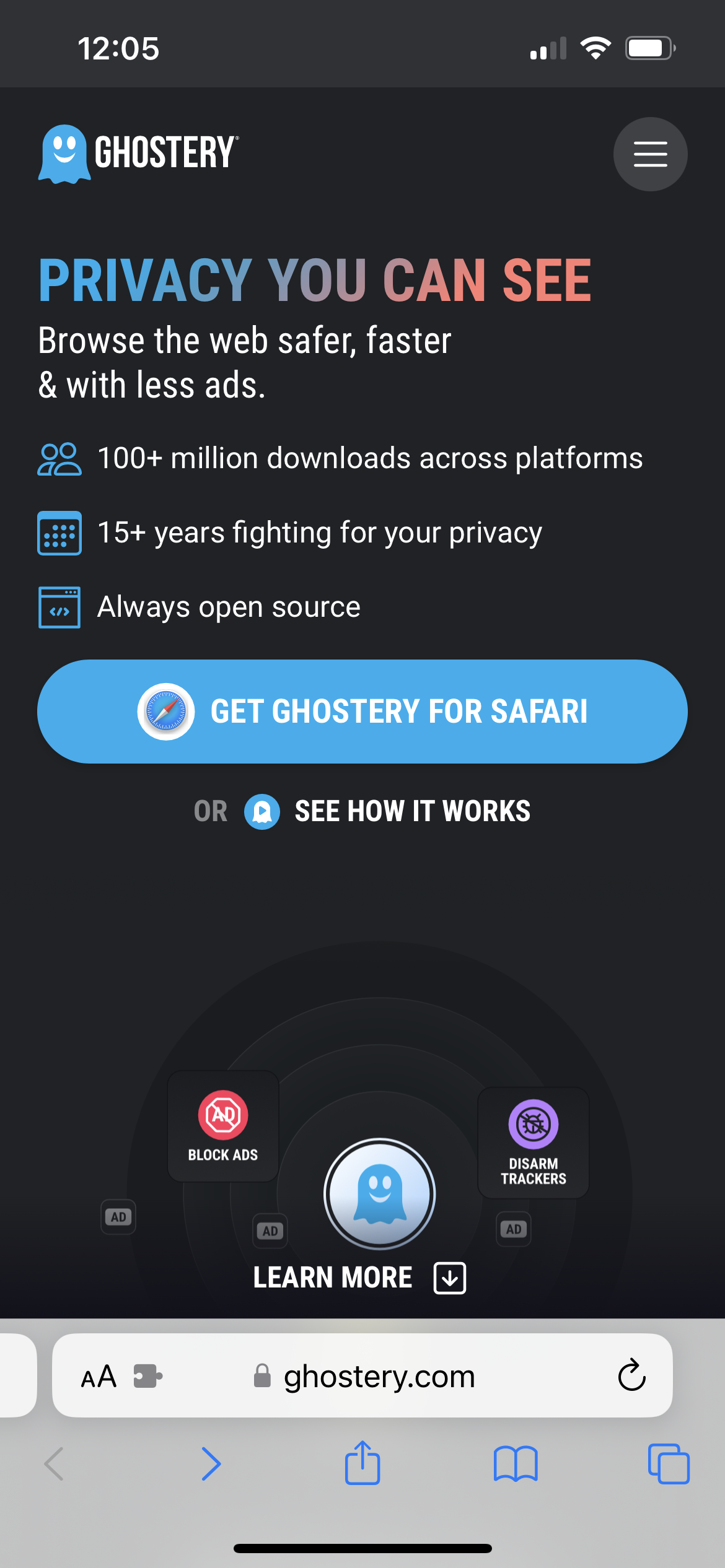
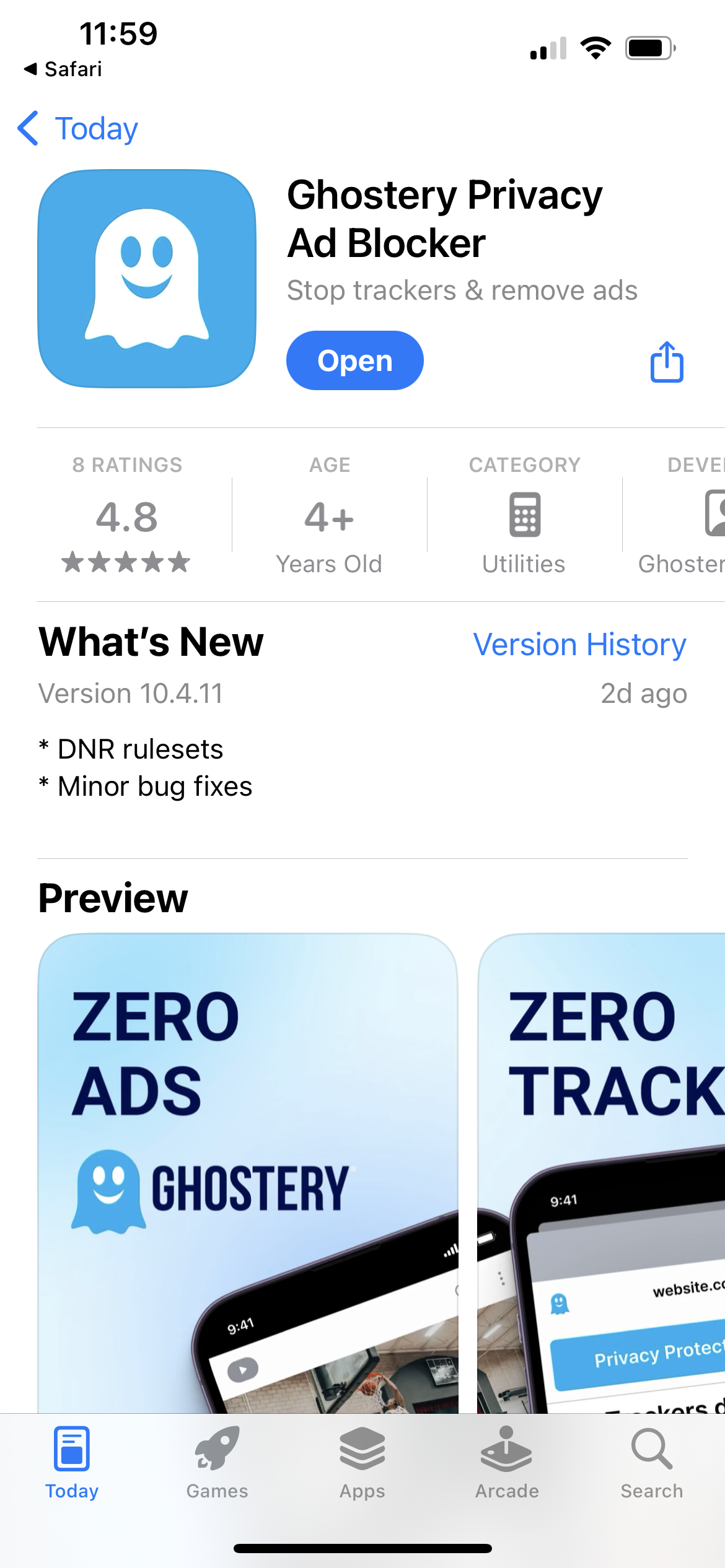
Follow the on-screen instructions to add the extension to your browser. Tap Open
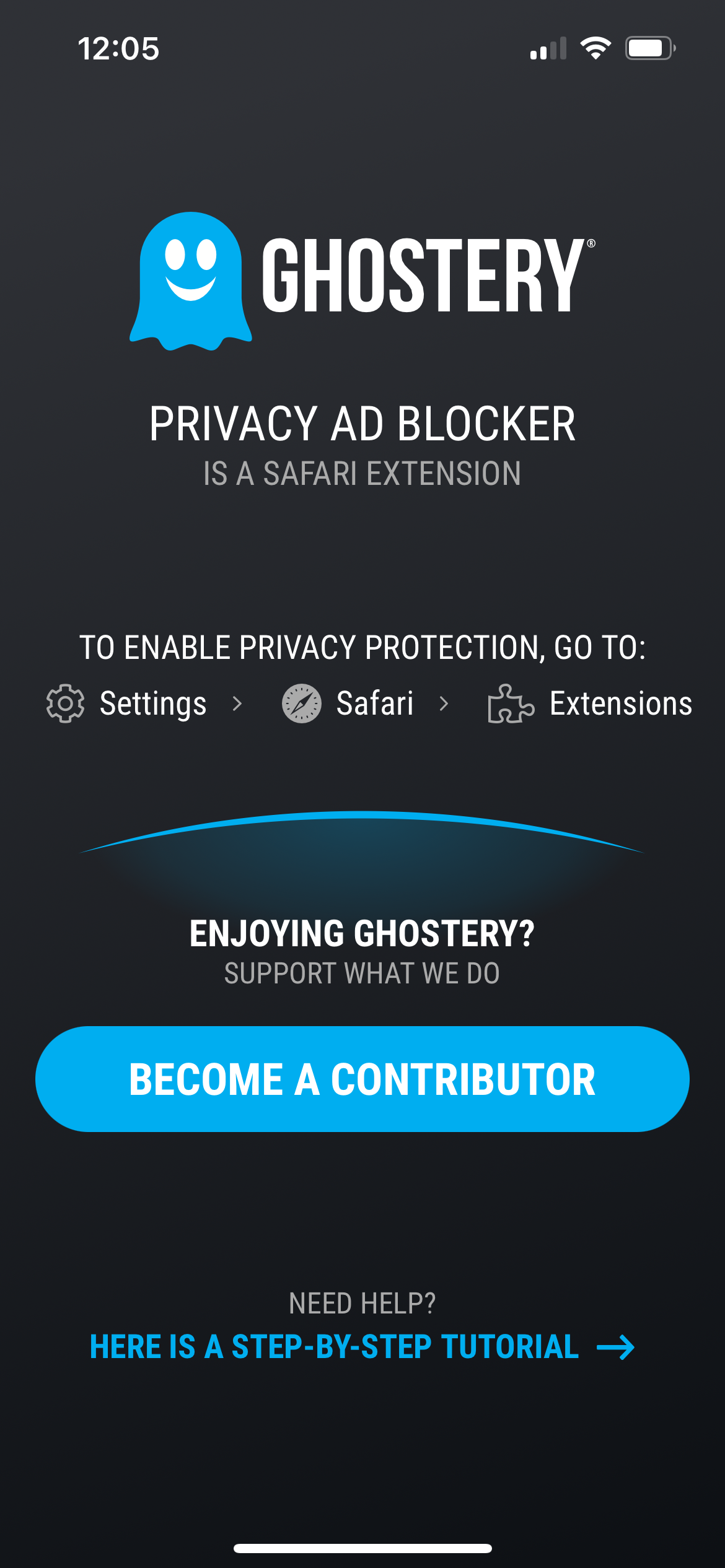
Enjoy an ad-free browsing experience with Ghostery! Set it up first by going to Settings > Safari > Extensions
Never installed a browser extension on Safari? No worries. Check out our instructions on how to get started or watch our YouTube video guide.
Once you’re finished, you will automatically block ads on your iPhone for any website you visit — with no need for any configuration.
Many people wonder how iPhones block ads, and the answer is a mix of built-in Safari settings and installing a reliable ad blocker extension for Safari. Here’s how to set it up step by step:
If ads still appear after installing an ad blocker, first confirm that the extension is enabled under Settings → Safari → Extensions. Some websites may use advertising formats that require updated filter lists, while others may temporarily bypass blocking techniques.
If you're still seeing ads on iPhone while browsing, try updating both iOS and your ad blocker extension, then restart Safari. In some cases, disabling and re-enabling the extension can resolve configuration issues.
With these steps and a quality ad blocker extension for Safari, ads on iPhone become far less intrusive, giving you a cleaner, faster, and more private browsing experience.
Safari extensions can occasionally become disabled after an iOS update or settings change. Open Settings → Safari → Extensions and verify that your ad blocker is enabled.
If a website behaves unexpectedly, temporarily disable extensions one by one to identify whether a specific extension is causing the issue. Re-enabling trusted extensions afterward helps maintain protection while ensuring websites continue to function properly.
Some websites rely on advertising revenue to provide free content. If you'd like to support a trusted website or troubleshoot a page that isn't displaying correctly, you can temporarily allow ads for that site.
Ghostery allows you to adjust protection settings for individual websites, giving you control over where ads and trackers are blocked. Whitelisting should generally be reserved for websites you trust and want to support financially through advertising.
There may be times when you need to temporarily allow ads on a specific website. Some sites require advertising scripts to load correctly, while others may restrict access when ad blocking is enabled.
To disable ad blocking in Safari:
If you're using Ghostery, you can use Adjust Protection to pause protection for one hour, one day, or permanently for a specific site. Once you've finished using the website, simply re-enable protection to continue blocking ads and trackers.
Both iPhone and iPad offer third-party options to block ads. Users can block ads within Safari by installing ad blocking apps (Safari extensions) from the App Store. This allows for a more comprehensive, ad-free experience across sites. These tools use content blocking to filter out ad content, resulting in faster page loads and less data usage.
Ad blockers are tools that prevent ads from loading and appearing while you browse the internet. They analyze the content of web pages and app interfaces, blocking elements that match known ad formats.
Ad blockers improve your user experience by making it faster and less cluttered. Ads usually carry some form of trackers as well, so greater privacy is another benefit.
To set up an ad blocker on your iPhone or iPad, first find a reputable ad blocker in the App Store. After downloading the app, follow the provided instructions to set it up and enable the ad blocking feature. Note that the app may require certain permissions in the iOS Settings to function properly.
Check out Ghostery to block ads in Safari. Once you’re in the App Store and on the Ghostery page, select the Get button in the App Store. Then follow the on-screen instructions to finish setting things up.
Advertisers track users’ online behavior to deliver personalized ads based on their interests and preferences. This tracking involves collecting data about an individual’s browsing and search history, as well as their app usage patterns.
These personalized ads are delivered by trackers that analyze your online activities. However, Apple provides a simple way to opt out of this targeted advertising.
To disable personalized ads on your iPhone, follow these steps:
You can prevent Apple Advertising from using your data to serve targeted ads on your iPhone by disabling this feature, giving you more control over your privacy.
Turning off personalized ads will stop Apple from showing you targeted ads; however, you will still see the same number of ads.
And just as you can block intrusive ads on your iPhone or iPad, you can also control Location Services to prevent advertisers from tracking your physical whereabouts, offering you more privacy and security.
While you're taking steps to block ads on your iPhone or iPad, it’s also worth considering the privacy implications of location services. These services, often used by ads to target your geographical position, can be managed to further enhance your online privacy.
To turn off certain apps using location services:
These actions can prevent apps from tracking your location.
Ads are not only annoying, but they also have a negative impact on your device performance, data usage, and privacy.
Many advertisements contain images, videos, tracking scripts, and other assets that must be downloaded before a page can fully load. Blocking these resources reduces network requests and can significantly lower data consumption.
Because fewer elements need to be loaded and processed, ad blocking can also reduce battery usage and improve browsing performance. This is especially noticeable on mobile connections and websites that contain large numbers of ads.
Here’s a few reasons why you should block ads on your iPhone and use an ad blocker on iPad:
You can avoid these problems and enjoy the benefits of blocking ads on your iPhone and iPad:
Blocking ads on iPhone and iPad is a smart move that can improve your device performance, reduce your data usage, and enhance your privacy. With Ghostery’s free ad blocker extension for Safari, you can block ads on your iPhone from thousands of sources with ease.
You can also integrate Ghostery with its other products (Privacy Suite) like Ghostery Private Search, which offers you a private and secure way to search the web without being tracked by advertisers.
If you want to take control of your mobile browsing experience and improve your privacy, try out the Ghostery iOS ad blocker for Safari. You’ll be amazed by how much faster and cleaner your online experience will be.
Get in touch if you have any questions. We’re always happy to help.
Yes. iPhones block ads through Safari’s built-in content blocking and by installing a dedicated ad blocker app from the App Store. Popular options like Ghostery's free Privacy Ad Blocker, AdGuard, or 1Blocker integrate directly with Safari, helping you remove ads, pop-ups, and trackers. Once installed, you can enable them under Settings → Safari → Extensions.
iPhone ad blocking removes distracting ads and pop-ups, speeds up page loading, saves battery and mobile data, and protects your privacy by stopping hidden trackers. Using an ad blocker extension with Safari’s built-in privacy features makes browsing cleaner, faster, and more secure.
Ad blockers have been supported on iPhones and iPads since iOS 9 through Safari content blocking extensions. They are highly effective at blocking many forms of web advertising, including display ads, pop-ups, trackers, and some video ads that appear in Safari. However, individual ad blockers may have different system requirements. For example, Ghostery for Safari requires iOS 18.7 or later and Safari 18.7+ because it uses browser capabilities that Apple introduced in newer versions of Safari. Using a regularly updated ad blocker helps maintain effectiveness as advertising techniques evolve.
iPhone ad blockers are generally very effective against display ads, pop-up ads, trackers, banners, and many video advertisements that appear in Safari. They work by preventing advertising and tracking resources from loading before a webpage is displayed. However, effectiveness varies depending on the advertising technology being used. Some ads embedded directly into content, particularly within mobile applications, may not be blocked. For the best results, use an actively maintained ad blocker and keep both iOS and the extension updated with the latest filter rules.
Ad blocking on iPhone works differently depending on where advertisements appear. Safari content blockers are designed primarily to block ads, trackers, and pop-ups while browsing websites in Safari. Many advertisements inside native iPhone applications operate through separate systems that Safari extensions cannot access. As a result, ad blocking is generally most effective in Safari and other supported browsers. Some apps may offer their own ad-free subscriptions or privacy controls, but browser-based ad blockers cannot universally remove every advertisement shown across all iPhone applications.
If there is anything you miss in Ghostery or have any questions, please drop a line to support@ghostery.com. We’re happy to talk to you anytime.